
Sometimes, when the 2ndNumber app goes into the background, the phone will close down the app, meaning calls will not be received and instead go to voicemail directly. This can be tricky to solve if your mobile device has it's own battery management tools - some have fairly obvious names such as "DuraSpeed". You will need to check the documentation for these apps to ensure they are NOT optimising the 2ndNumber app. If an app is "optimised" it normally means the app is having its battery usage managed and that usually involves it being shut down in the background!
Aside from that, you should check battery management for the 2ndNumber app by going to :
Settings > Battery
Click the three dots in the top right corner
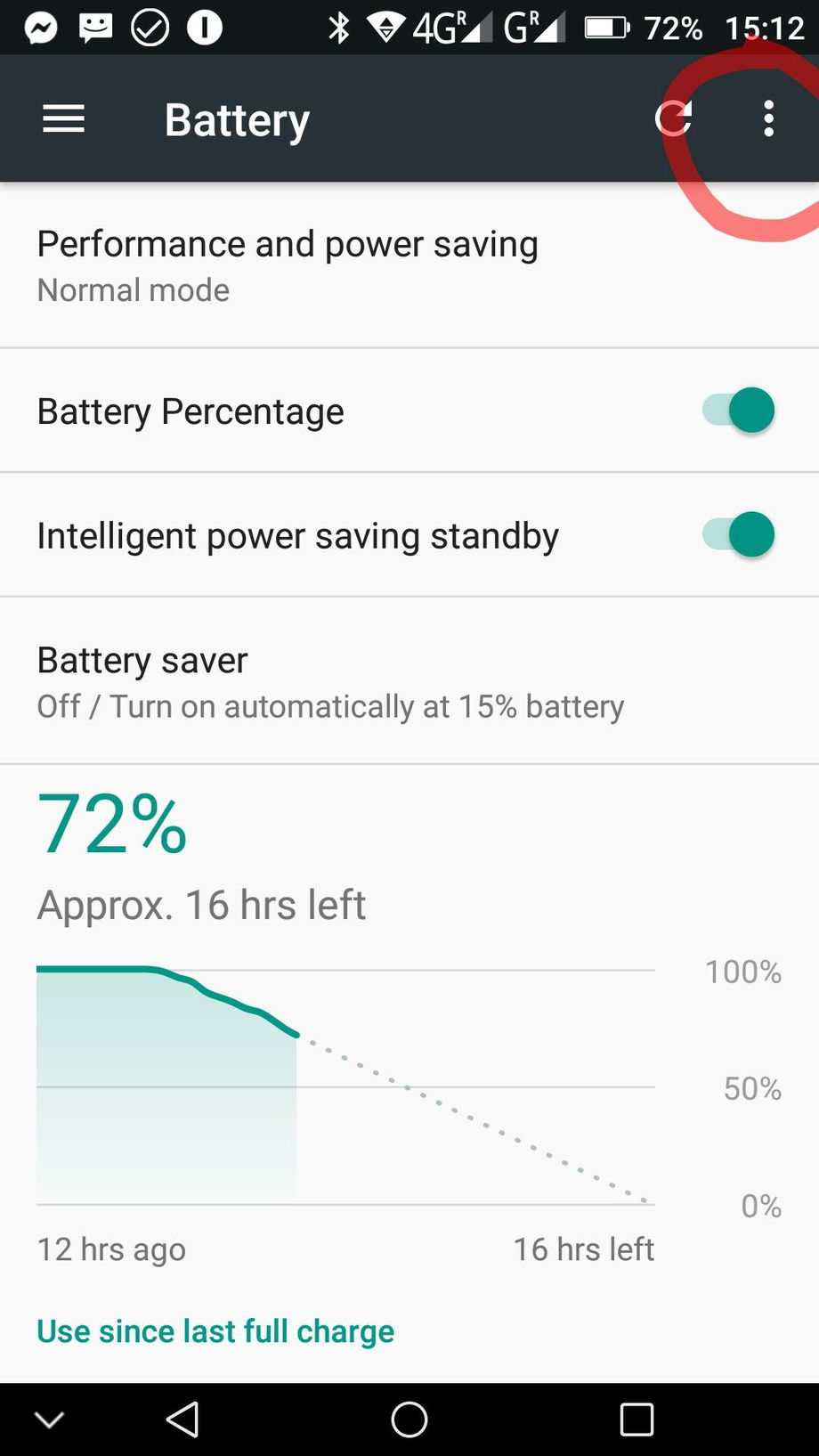
Select "Battery Optimisation"
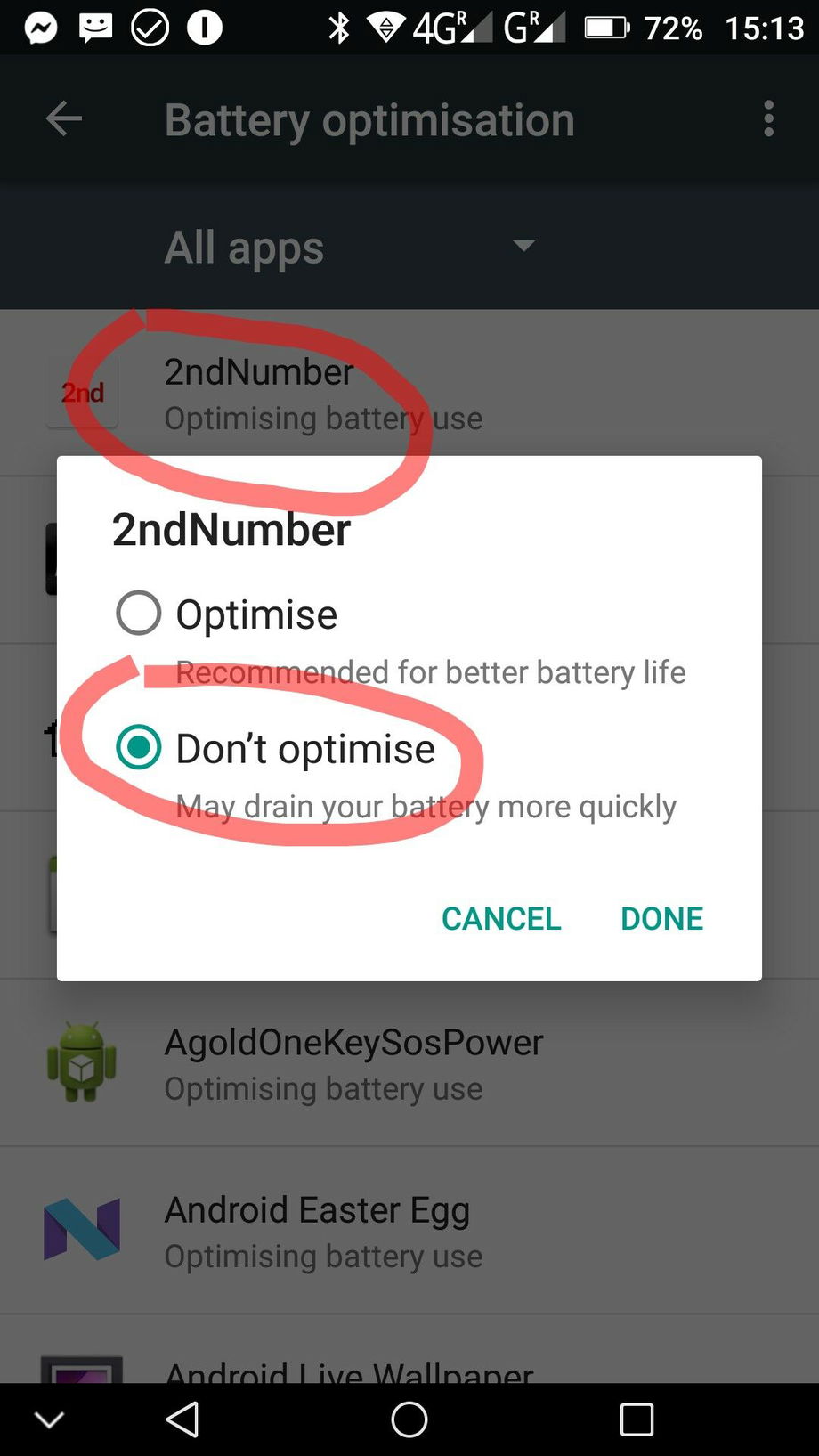
Select "All Apps"
Tap the 2ndNumber app
Select "Don't Optimise"


Brand specific apps
Many popular phone brands have their own battery management app/service. Do check if your brand has one and if so, access it to ensure that the 2ndNumber app is not optimized and fully allowed to run in the background. Here are the most common:
Phone Brand | Primary System Service / Feature Name | Key Management Tools & Settings |
|---|---|---|
Samsung (One UI) | Device care | Background usage limits (Sleeping apps, Deep sleeping apps) |
Google (Pixel) | Adaptive Battery | Battery Saver, Extreme Battery Saver modes |
Xiaomi (MIUI/HyperOS) | Security app | Manage app battery usage, Autostart permissions, Battery Saver modes |
Huawei (EMUI/HarmonyOS) | Phone Manager | Launch management (restricts apps from auto-starting), Power-saving measures |
OPPO (ColorOS) | Battery settings / App Management | Smart power saving, Night charging protection, Background wake-up permissions |
vivo (Funtouch OS) | i Manager | Speedup whitelist, Autostart manager, Background power consumption management |
Steps you can carry out
Here are some tips for the most popular brands of phone:
Samsung (One UI)
Samsung's One UI offers a couple of reliable ways to keep apps running, from a quick lock to a permanent whitelist.
Method 1: Lock the App in Recents (Quick & Easy)
This is the fastest way to temporarily protect an app from being closed .Open the app you want to keep alive.
Open the Recent Apps screen (swipe up from the bottom and hold, or tap the square button).
Tap the app icon at the top of the app's window .
From the menu that appears, select "Keep open" (on some versions, this may be a lock icon) .
You'll see a lock icon appear on the app preview. This app will now stay in memory even if you tap "Close all" .
Method 2: Add Apps to "Never sleeping apps" (Permanent Fix)
This method tells the system to never put specific apps to sleep to save battery .Go to Settings > Battery and device care (or simply "Device care") .
Tap on Battery .
Select Background usage limits .
Tap on Never sleeping apps .
Tap the "+" (plus) icon in the top right corner .
Select the apps you want to protect from the list and tap "Add" .
Method 3: Disable Adaptive Battery (For Overall Management)
This prevents the system from learning and restricting your app usage patterns .Go to Settings > Battery and device care > Battery.
Tap on More battery settings (usually located at the top right) .
Turn off the toggle for "Adaptive battery" .
⚠️ Note: Be sure to also check that your important apps are not listed under "Sleeping apps" or "Deep sleeping apps" in the "Background usage limits" menu, and consider disabling "Put unused apps to sleep" .
Vivo (Funtouch OS)
Vivo's Funtouch OS requires a multi-pronged approach, combining the "Speedup Whitelist" with startup and battery permissions.
Method 1: Lock the App in Recents (Speedup Whitelist)
This adds the app to a whitelist that prevents it from being closed by the "Speed up" (cleanup) function .Open the app you want to protect.
Open the Control Center (slide upward from the bottom of the screen) .
Find the app's icon in the Control Center, then slide downward on it .
Tap the Lock icon that appears. You will now see a lock on the app's icon, meaning it's added to the Speedup Whitelist and won't be closed by the "Speed up" button .
Alternative for older OS versions: Go to i Manager > tap the Settings icon > Speedup whitelist and turn on the switch for your apps .
Method 2: Disable Battery Optimizations and Enable High Background Power Consumption
This ensures the system doesn't restrict the app's background power usage .Go to Settings > Battery > Battery Optimization .
Tap the filter at the top and change it from "Not optimized" to "All apps" .
Select your essential apps and choose "Don't optimize" .
Go back to the main Battery settings, look for "High background power consumption" (or a similar option) and turn it on for the same apps .
Method 3: Allow Autostart and Background Activity (App Startup)
This allows the app to launch automatically after a reboot and run tasks in the background .Go to Settings > Apps > App Startup (or "Permission Management" > "Autostart") .
You will see three toggles for most apps: Auto-start, Secondary launch, and Run in background .
Turn on all three toggles for the apps you want to keep alive at all times .
Reboot your device to make sure the new settings are applied .
For older OS versions: Go to i Manager > App manager > Autostart manager
Xiaomi (HyperOS & MIUI)
Xiaomi devices have some of the most aggressive background management. You usually need to combine several settings to protect an app.
Method 1: Disable Battery Restrictions (Per App)
Open the Security app (pre-installed).
Tap on Battery (or "Battery & performance").
Tap on App battery saver (or "Manage app battery usage") .
Find the app you want to protect, tap on it, and select No restrictions. This prevents the system from closing it to save power .
Method 2: Allow Autostart
Go to Settings > Apps > Permissions > Autostart .
Toggle on the switch for the apps you want to keep alive. This allows them to launch automatically after a reboot or when a background task is triggered .
Method 3: Lock the App in Recents (Multitasking)
Open the app you want to protect.
Open the Recent apps menu (swipe up and hold or tap the square button).
Find the app card, press and hold it, then tap the padlock icon that appears. The app will now stay in memory even if you tap "Clear all" .
Method 4: Use the Security App to Lock Apps
Open the Security app.
Tap Boost speed.
Tap the gear icon (settings) in the top right.
Select Lock apps and enable the toggle for your essential apps. This serves as an extra layer of protection .
OnePlus (OxygenOS)
OnePlus devices are known for having very strict background limits that can even reset after updates. Here is how to lock them down.
Method 1: Lock the App in Recents
Open the app and then open the Recent apps menu (swipe up and hold).
On the app preview, look for a three-dot menu at the top (on newer versions) or long-press the app window .
Tap Lock. You will see a padlock icon appear. This prevents the app from being killed when you swipe others away .
Method 2: Turn Off Battery Optimization
Go to Settings > Apps > App management.
Tap the gear icon (or three-dots) and select Special access > Battery optimization .
Change the filter at the top to All apps.
Find your app, tap it, and select Don't optimize.
⚠️ Warning: OnePlus phones are known to revert this setting randomly, so combining this with the "Lock" method above is crucial .
Method 3: Disable Enhanced/Advanced Optimization
Go to Settings > Battery > Battery optimization.
Tap the three-dot menu in the top right and select Advanced optimization .
Turn off both Deep optimization (or Adaptive Battery) and Sleep standby optimization. These are the main features that kill background apps and delay notifications .
Huawei (EMUI & HarmonyOS)
Huawei's Phone Manager app is the control center for background processes. Here is how to configure it.
Method 1: Manage App Launch
Open the Phone Manager app.
Tap App launch .
Find the app you want to protect and tap it.
Select Manage manually, and then turn on the toggles for Auto-launch, Secondary launch, and Run in background. Turning off "Automatic management" gives you full control .
Method 2: Disable Battery Optimization
Go to Settings > Battery > More battery settings.
Turn off Smart battery capacity if available.
Also, ensure Power saving mode and Ultra power saving mode are turned off when you need the apps to run .
For a deeper setting: Search for "Battery optimization" in the Settings search bar. Tap it, change the filter to All apps, find your app, and select Don't allow .
Method 3: Lock the App in Recents
Open the app.
Open the Recent apps menu (swipe up and hold or tap the square button).
On the app card, swipe downwards slightly. You will see a padlock icon appear in the corner, locking the app in memory.
OPPO (ColorOS)
OPPO's ColorOS has multiple layers of background management. You'll need to combine a few methods to ensure apps stay alive.
Method 1: Lock the App in Recents (Quick & Easy)
This prevents the app from being cleared when you hit the "Clear all" button .Open the app you want to protect.
Open the Recent Apps screen (swipe up from the bottom and hold).
Find the app preview, then swipe downward on it .
You will see a padlock icon appear on the app card, indicating it is now locked in the background .
Alternative: Tap the menu icon (three dots or ":" on the app card) and select Lock .
Method 2: Disable "Background Freeze" (Battery Settings)
This tells the system not to automatically freeze the app when the screen is off .Go to Settings > Battery .
Look for "Background Freeze" or "Background Freeze Management" (may vary by ColorOS version) .
You will see a list of apps. Find your essential apps and toggle them off (or uncheck them) to prevent them from being frozen in the background .
⚠️ Note: The source advises only doing this for apps that truly need to run continuously, as it can increase battery drain .
Method 3: Disable Battery Optimization (Per App)
This prevents the system from restricting the app's background activity to save power .Go to Settings > Battery > Battery optimization .
Tap the filter at the top and change it from "Not optimized" to "All apps" .
Find the app you want to protect and tap on it.
Select "Don't optimize" . This ensures the app can run freely in the background without power-related restrictions .
Google Pixel (Stock Android)
Google's approach relies heavily on AI and machine learning. The primary tool is Adaptive Battery, which learns your habits and restricts apps it thinks you won't use .
Method 1: Set App to "Unrestricted" (Per App)
If Adaptive Battery is being too aggressive with a specific app (e.g., delaying notifications), you can manually override it .Go to Settings > Apps > See all apps .
Find and tap on the app you want to protect.
Tap App battery usage (or "Battery") .
Tap "Allow background usage" (or "Manage battery usage") .
You will see three options:
Unrestricted: Allows the app to run freely in the background, even with Battery Saver on. This is the setting for apps you never want killed .
Optimized (Recommended): Lets Adaptive Battery manage the app based on your usage patterns. This is the default setting .
Restricted: Severely limits background activity to save battery. The app may not run or send notifications until you open it .
Select Unrestricted.
Method 2: Understand and Configure Adaptive Battery
This is the system-wide brain behind background management. While generally effective, you should know where it is .Go to Settings > Battery > Battery Saver .
Tap Adaptive Battery .
Ensure "Use Adaptive Battery" is toggled on (it is on by default) .
⚠️ Note: The system takes time (up to a few weeks) to learn your habits. If your usage is irregular, it might occasionally make mistakes, which is why Method 1 (Unrestricted) is useful for manual overrides .
Method 3: Extreme Battery Saver (Optional)
This is an aggressive mode for emergency situations, but you can whitelist essential apps even here .Go to Settings > Battery > Battery Saver > Extreme Battery Saver .
Tap "Essential apps" .
Select the apps you want to allow even when Extreme Battery Saver is active. All other apps will be paused to save power .
