
You can happily use the Zoiper Lite App to do a similar job of making and receiving calls with your 2ndNumber account. Here's how:
Download Zoiper Lite here.
Once you've opened the app, configure as follows:
Enter your 2ndNumber username (as per your welcome email) followed by @call.2ndnumber.tel. In the example below we’re using 447949345072@call.2ndnumber.tel. In the password box, enter the special SIP credentials password you have been emailed. NOTE: This is NOT your regular 2ndNumber password.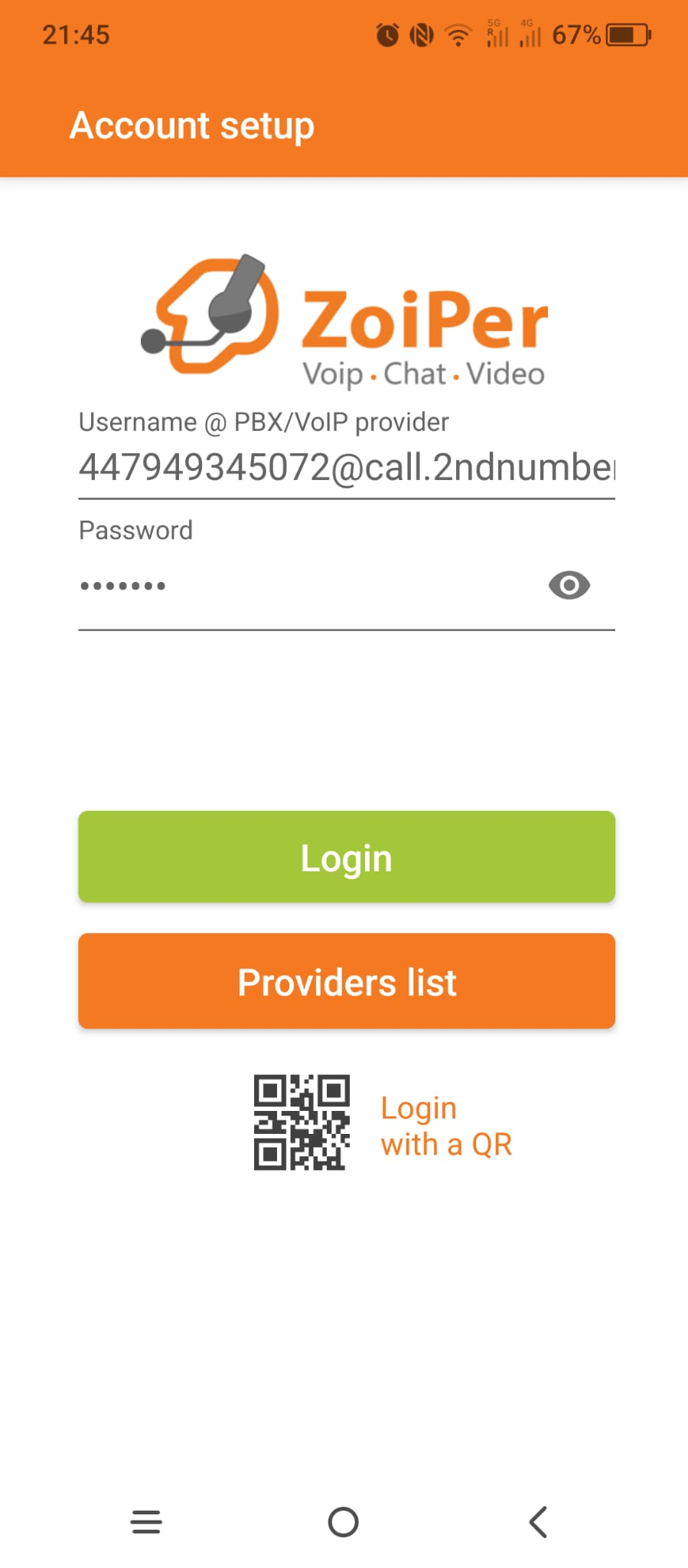
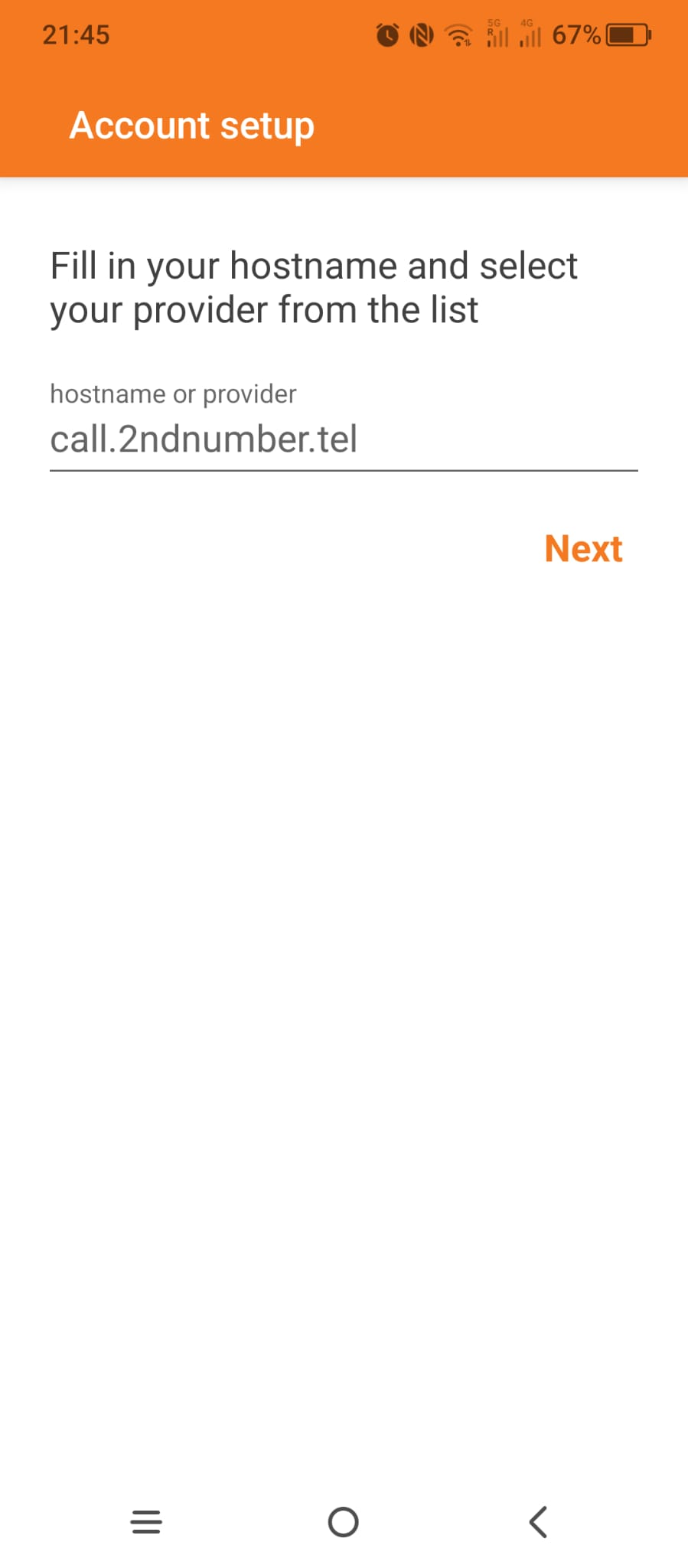
Enter call.2ndnumber.tel in the hostname field:
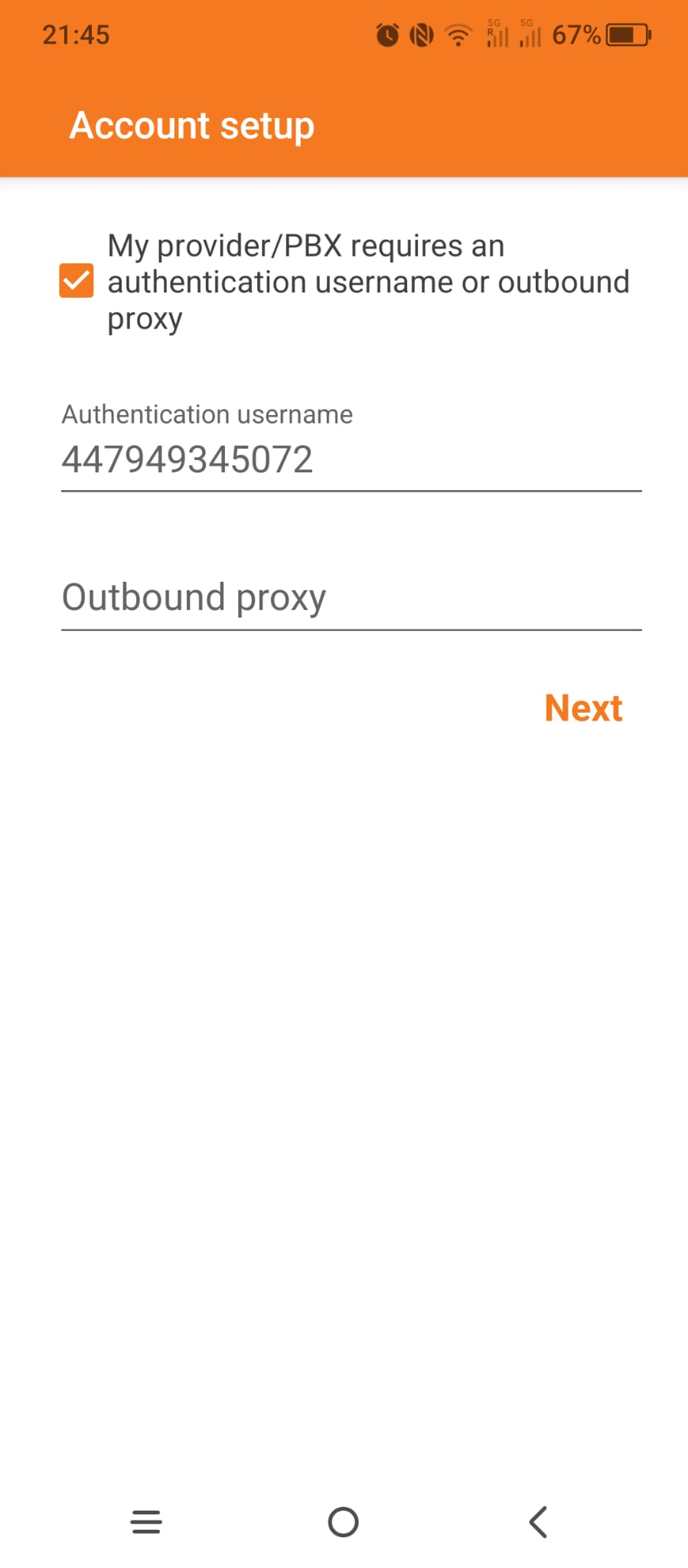
Tick the tickbox and enter your username once more. Leave Outbound Proxy blank:
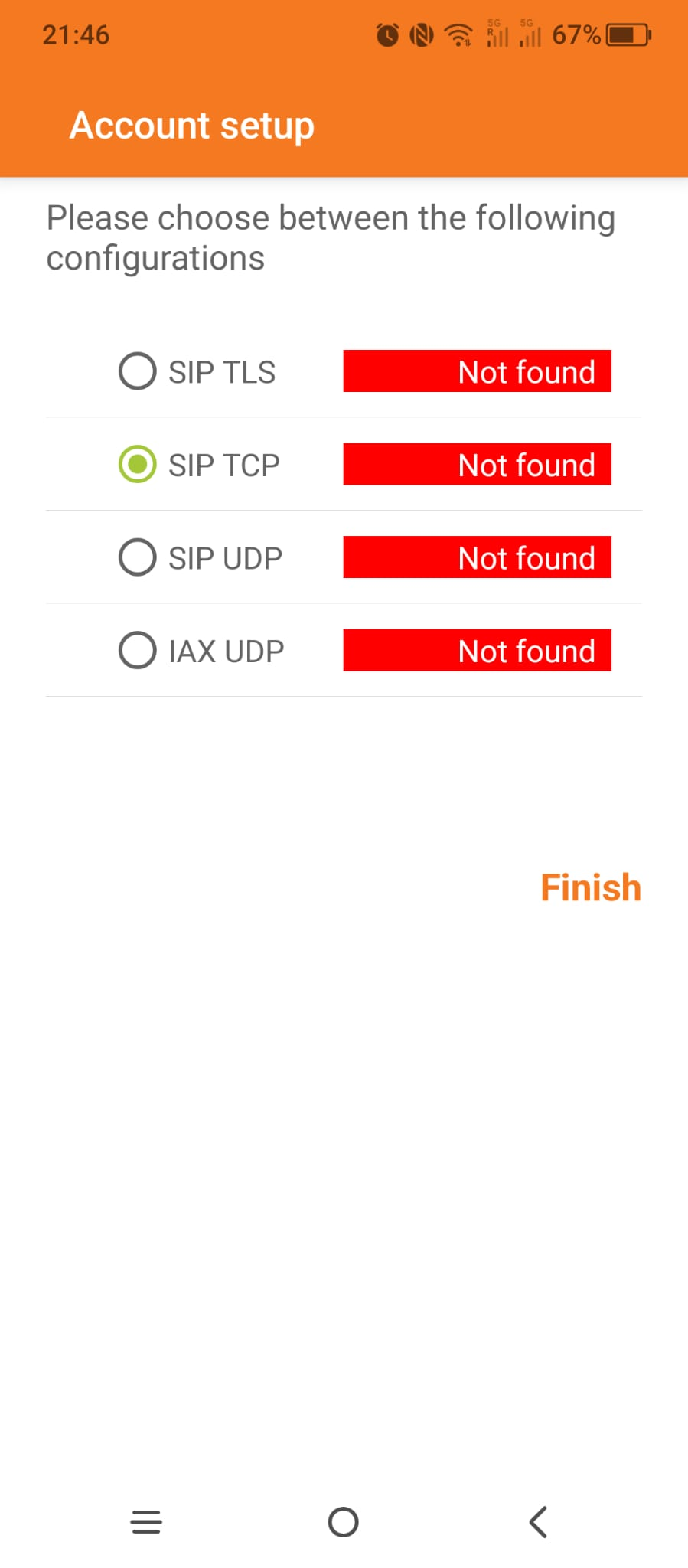
Let the app test the connection, it might show all entries as red - don’t worry at this stage, just be sure to select either the TCP or UDP option - ideally the TCP option:
You’re all set up!
NOTE: The password you enter in this guide is not your regular 2ndNumber.tel password. You need to request it by manually logging into your 2ndNumber.tel web dashboard and then at the bottom of the left hand menu, tap “Request SIP credentials”. The password will then be emailed to you. It is a very long and complicated password and absolutely impossible to type manually. You will need to email it/WhatsApp it to your phone and copy/paste the password into the password box.
