# Making a phone call
Source: https://kb.2ndnumber.tel/support-articles/making-a-phone-call
## Logging in to the dashboard
First, you will need to log in. Your login details are contained in your **welcome email**, which **may be in spam**. It will look something like this:
`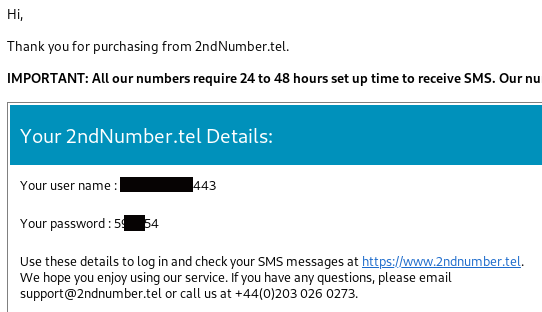 `
You will click the link in the email - which also happens to be here: ****
And from there enter the **username** and **password** contained in your welcome email.
## Starting the WebPhone
While getting setup, **we recommend you use Google Chrome** until we have everything working.
TURN OFF ANY VPN SOFTWARE.
MAKE SURE YOUR ANTI-VIRUS OR ANTI-MALWARE SOFTWARE ALLOWS THE **2NDNUMBER.TEL** DOMAIN.
Now you are logged into your 2ndNumber account, you can make calls to the contacts you receive messages from, or, call directly from the softphone. There are two ways of doing this:
`
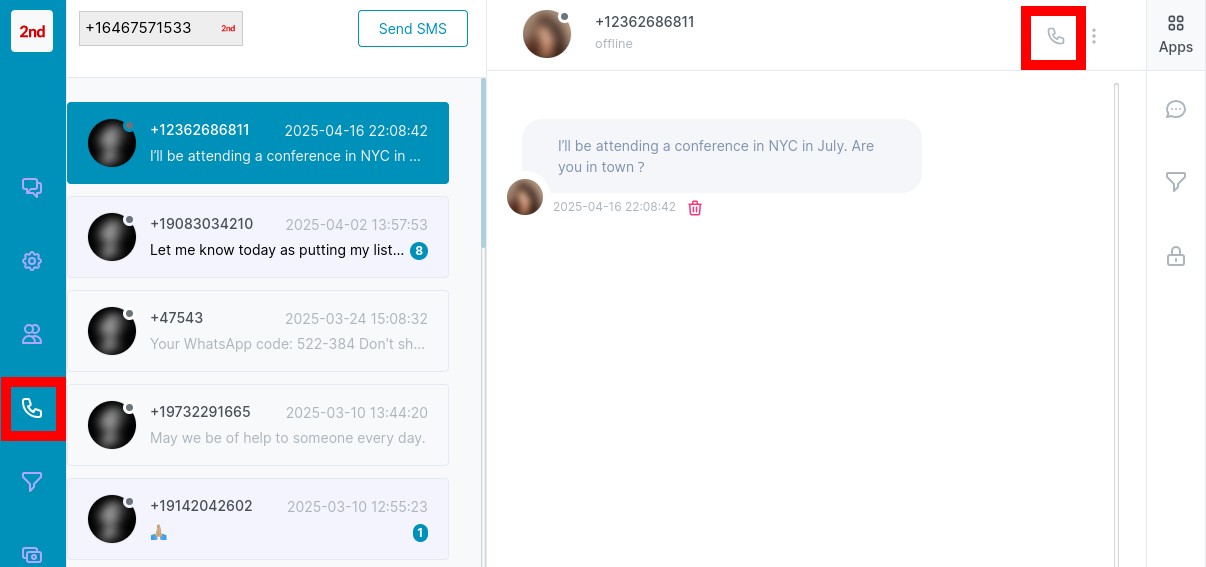 `
As you can see from the image above, you can **tap the 📞 icon** next to the contact's name/number to call them directly. OR, **tap the 📞 icon in the left hand bar**. The 2ndNumber WebPhone will appear:
`
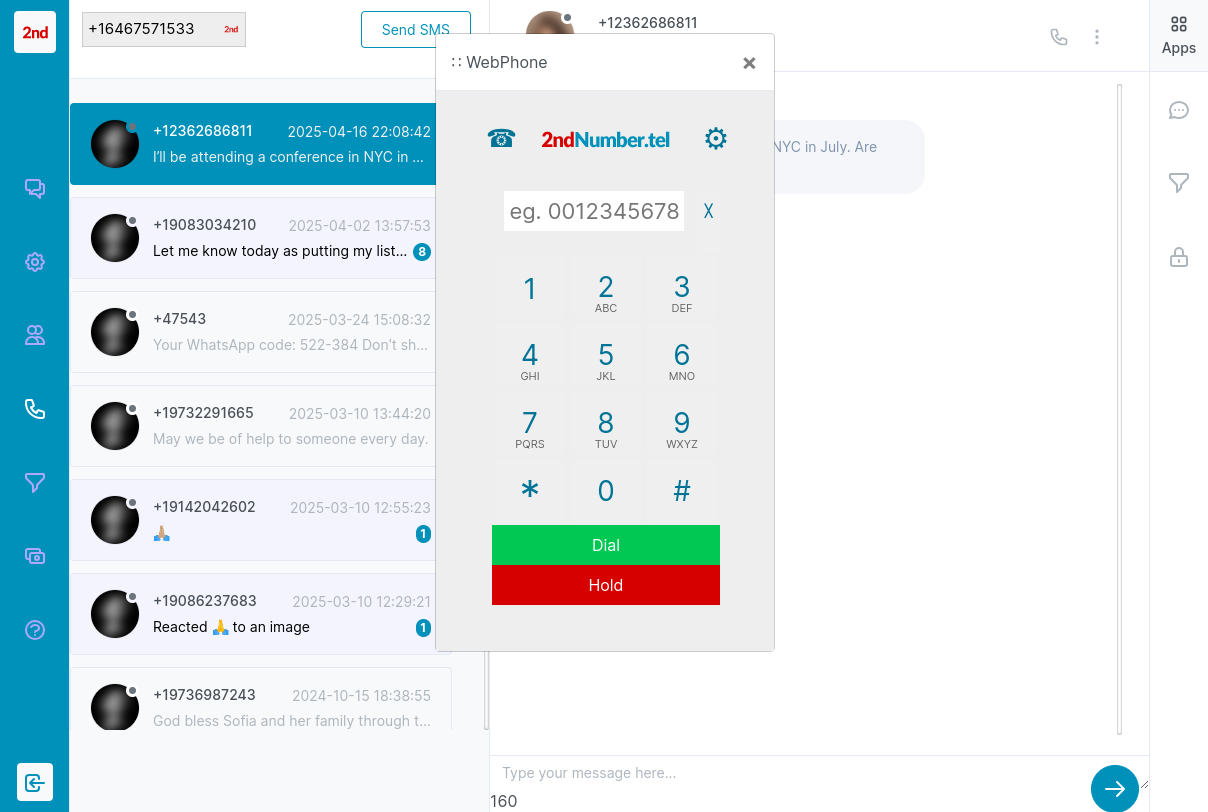 `
You will see that the phone number is already entered. Now it is simply a case of pressing the Dial button to dial the contact. Alternatively you can tap the 📞 on the left hand side to dial a number manually.
Points to note:
1. If you are calling from your laptop or PC, the **WebPhone will use your webcam's microphone and your computer's speaker**. So make sure you have it switched on. If you have more than one microphone running on your computer you can select it from Chrome's permissions button as shown here:

2. When the WebPhone appears on your screen, it will need to connect to our servers first, so **give it around 3 seconds before hitting the 'Dial' button**. Many webcams come with an LED light that will light up to let you know you're connected and ready to make and receive calls.
3. ***The WebPhone must remain open for it to receive calls. You cannot close it down - if you do, calls will go to voicemail or your [call forwarding number](https://kb.2ndnumber.tel/support-articles/forward-unanswered-inbound-calls-to-another-number) if you set it.***
## Dial in International Format
If you are not dialling a number from a contact in your SMS messages list, **you will need to dial the number in international format**. This means starting the number with 00 then the country code.
eg:
USA: 001
UK: 0044
**Always use this format to dial phone numbers, even if you are in the same country as the number you are dialling.** 2ndNumber only accepts phone numbers in international format. If you want to know how much a destination costs to call, then more details can be found under 'Pricing' on our website at [www.2ndnumber.tel.](https://www.2ndnumber.tel)
## Receiving Calls
To receive a call, you must have the WebPhone window open. If you are on your smartphone, you can just **leave the browser window open in the background**, or if you are on your computer, just leave a browser tab open. When a call comes in, you can simply tap the "Answer" or "Reject" button:

If you reject the call, the call will go directly to your voicemail message. If you answer the call, then your smartphone or computer will begin the call for you and you simply have to begin speaking.